How do I make a GIF from a video for free?
Open the video on this page, set the start and end with the handles, and press Export GIF. It is free, has no watermark and needs no account.
Free · runs in your browser
Choose the few seconds worth repeating, crop them to the shape you need and save a GIF or animated WebP that loops on its own. Phone clips, screen recordings and camera files all work.

Or choose one from your computer. Phone clips, screen recordings and camera files all work.Pick a clip from your photos or files. It stays on your phone.
Works with MP4MOVWebMGIFand more
Looped on your device. Nothing is uploaded.
To make a GIF from a video, open the video, drag the Loop start and Loop end handles around the moment you want, and press Export GIF. The part between the handles becomes a GIF that repeats by itself in any browser, chat or document that shows images.
The difference between a GIF people enjoy and one they scroll past is usually in the choices before the export: a moment that reads without sound, a crop that fills a phone screen, and a restart you don’t notice. This page walks through each of them. For the file settings (width, frame rate, colours, a size limit), see the MP4 to GIF converter, which uses the same tool.
Everything happens on your device. The video is never uploaded, and the GIF has no watermark.
Press Select video (Choose video on a phone) or drop the file on the page. iPhone MOV files, Android MP4s and screen recordings open in modern browsers.
Play the preview and press Set start (I) where the action begins and Set end (O) where it should stop, or drag the handles. Use , and . to step one frame at a time.
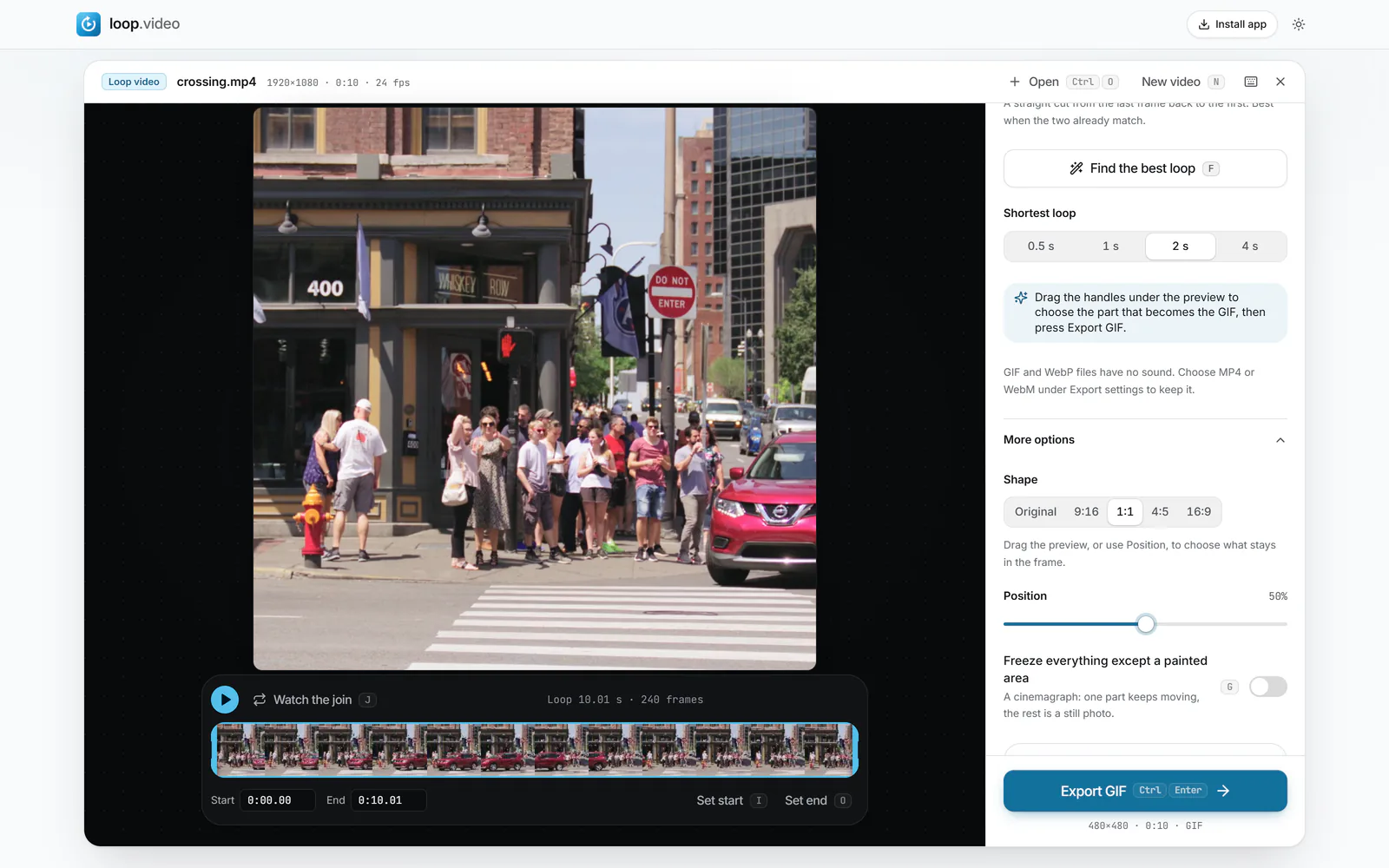
Open More options and choose a Shape: 1:1 for a square GIF, 9:16 for a phone screen, 4:5 for a feed. Drag the preview to choose what stays in frame.
 (enlarge image)
Shape → 1:1 crops the clip to a square GIF; drag the preview or use Position to frame it.
Press Watch the join (J). If the jump back to the start is obvious, press Find the best loop (F), or set Join to Crossfade.
Check Plays (Forever by default), then press Export GIF and Download video. Choose WebP under Export settings for a smaller, full-colour file.
A GIF plays silently, small and on repeat, often in a feed where people give it a second or two. Moments that work under those conditions share a few traits:
Use footage you filmed yourself or have the right to share. For a clip in a video you already own, open the file and trim to the scene; loop.video doesn’t fetch videos from websites.
Most video is 16:9, which shows up as a thin strip on a phone held upright. Cropping before the export makes the GIF fill more of the screen and removes pixels you would otherwise pay for in file size.
After choosing a shape, drag the preview sideways (or up and down) to frame the subject, or use the Position slider for fine control.
A GIF jumps straight from its last frame back to its first. When those two frames look different, the jump repeats every few seconds and draws the eye. Three tools help:
A GIF that runs forward and then backwards to hide the join is a different effect that this tool doesn’t make. For background on why some loops look endless and others don’t, read the seamless loop guide.
A cinemagraph is a GIF where most of the picture stands still and one detail keeps moving: steam from a cup, hair in the wind, a flickering sign. In More options, turn on Freeze everything except a painted area and paint over the part that should move. The rest freezes on the frame you choose with Use the current frame.
Cinemagraphs also make unusually small GIFs, because the frozen area costs almost nothing after the first frame. The cinemagraph maker has the full technique.
Both loop by themselves and neither has sound. A GIF opens absolutely everywhere but is limited to 256 colours per frame. An animated WebP has full colour and is typically much smaller; every current browser shows it, though some apps and email programs still don’t. loop.video can export WebP in Chrome, Edge and Firefox (not Safari).
If the destination takes video and you want sound or full HD, export an MP4: it is smaller and sharper than either image format. For a GIF that needs to become a video, go the other way with GIF to MP4.
Open the video on this page, set the start and end with the handles, and press Export GIF. It is free, has no watermark and needs no account.
Move the playhead to where the part begins and press Set start (I), then to where it ends and press Set end (O). Only the frames between the handles go into the GIF.
Yes, in Safari on iPhone and Chrome on Android. Choose the clip from your photos, trim it and press Export GIF, then Share or save to Photos.
Open More options, set Shape to 1:1 and drag the preview to frame the subject before exporting.
Two to five seconds suits most reactions; up to 30 seconds is possible. The longer it is, the bigger the file, so trim to the moment that matters.
The last and first frames don’t match. Press Find the best loop to pick frames that do, or set Join to Crossfade so the end dissolves into the start.
Not from a link. This tool works with video files on your device and never downloads from websites. If the video is your own, open your original file instead.
No. The GIF is made in your browser tab and the video stays on your device.