
Free · runs in your browser

Loop a video for an hour

Turn a few seconds of footage into a 10-minute, 30-minute or one-hour file for a screen, a stream break or background playback, and see how big it will be before you start.

Drop a video to loopChoose a video to loop

Or choose one from your computer. MP4, MOV, WebM and GIF all work.Pick a clip or a GIF from your photos or files.

Works with MP4MOVWebMGIFand more

Looped on your device. Nothing is uploaded.

To loop a video for an hour, open the clip, choose Length under Repeat, tap 1 hour and press Export video. The short clip is repeated until the file runs for exactly 60 minutes, with the final pass trimmed so it ends on the hour.

The same choice offers 10 min and 30 min, and Custom length takes any running time up to 3:00:00. A long export is quicker than you might expect: the loop is encoded once and those compressed frames are written again for every repeat, so an hour built from a 5-second clip needs about 5 seconds of encoding plus the time it takes to write the file.

The work happens in your browser and the video is never uploaded. The main thing to plan for is size: an hour of video is a large file, so the estimate under Export settings is worth a look before you press the button.

How to make a one-hour loop in loop.video

  1. Open the short clip

    Drop the file on Drop a video to loop or press Select video. A clip of a few seconds to a minute is typical for a long loop.

  2. Make the join smooth

    Over an hour, a jump at the join is seen hundreds of times. Press Find the best loop (F) to choose matching start and end frames, and choose Crossfade if the result shows a Fair or Poor match.

  3. Set the length

    Under Repeat, choose Length and tap 10 min, 30 min or 1 hour, or type a running time into Custom length.

  4. Check the size estimate

    Open Export settings and read the estimate line, which shows the file size, length and pixel size. Lower Size or pick Smaller file under Quality if the number is too big.

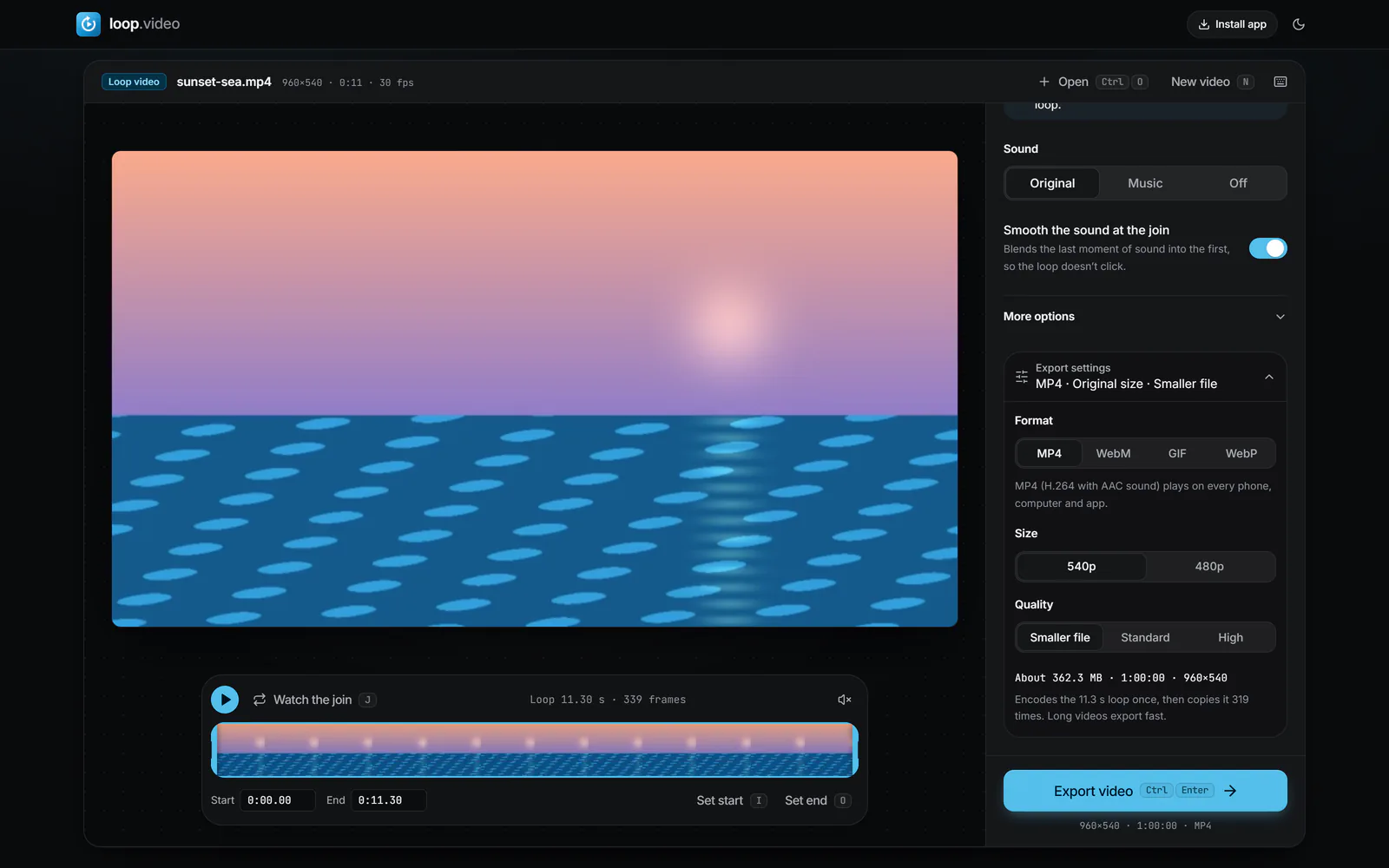
    Dark theme editor with Export settings open: MP4, Smaller file, and the estimate line About 362.3 MB · 1:00:00, encoding the 11.3 s loop once and copying it 319 times (enlarge image)

    With Length on 1 hour, the estimate line shows the size and how many times the pass is copied.

  5. Export and download

    Press Export video and keep the tab open while the file is written. When Your video is ready appears, press Download video.

Why a long loop exports in minutes, not hours

Most editors treat an hour of repeated clips as an hour of new video and compress every frame of it, which can take longer than the video lasts. loop.video does the expensive part once. It prepares one pass of the loop, then writes those same compressed frames again and again with new timestamps until the length is reached. Only the sound is rebuilt for the full hour, because audio is light work and rebuilding it keeps it locked to the picture.

In some cases even that single encode is skipped. If the join is Cut, Shape is Original, Size is original, Quality is Standard and the loop starts on a key frame (a frame stored as a complete picture, such as the first frame of the file), the original frames are copied with no re-encoding. The picture is then identical to your source for the whole hour.

Long files are written to the browser’s private storage as they are built rather than kept in memory, so a long export does not need an hour of video’s worth of RAM.

How big an hour-long loop file will be

File size is bitrate multiplied by running time. Bitrate is how much data each second of video uses, usually given in megabits per second (Mbit/s). Eight megabits make one megabyte, so the sum for an hour is: Mbit/s × 3,600 ÷ 8 = megabytes.

  • When the loop is encoded at Standard quality, 1080p at 30 frames per second uses about 5 Mbit/s: roughly 2.3 GB for one hour, 1.1 GB for 30 minutes and 380 MB for 10 minutes.
  • At 720p it is about 2.2 Mbit/s, so an hour comes to around 1 GB.
  • At 480p, about 1 Mbit/s, an hour is roughly 450 MB.
  • When the original frames are copied, the file keeps the original bitrate. Phone footage is often 15-20 Mbit/s at 1080p, so a copied hour can reach 7-9 GB.

Those figures are rough, and your footage will differ, which is why the estimate line under Export settings is the figure to trust. When frames are copied, the file keeps the bitrate of the original. When the loop is encoded, Size (original, 1080p, 720p or 480p) and Quality (Smaller file, Standard, High) set it. Dropping one step in Size usually saves more than changing Quality, and for a background screen viewed from across a room 720p is often plenty.

Storage and downloading

Make sure the device has free space for the estimated size with some room to spare, since the file is built in the browser’s storage before you download it. On a phone, a multi-gigabyte download can take a while to save to Photos; a computer is the more comfortable choice for hour-long files.
Ten minutes, thirty minutes or an hour: which to make

  • 10 min suits a break slide during a live stream, a lobby screen before a talk, or a test file to check how your join looks over many repeats.
  • 30 min covers a typical meeting, a class or a short exercise session without making a very large file.
  • 1 hour is the usual choice for background playback on a TV, a shop display or a waiting room, and a sensible unit to hand to a player that repeats files.

If the loop is meant to calm or set a mood, the ambient video loop page covers what makes footage feel restful over a long stretch. For a track that sets the length, choose Until the music ends instead; see loop a video with music.

What about a 10-hour loop video?

Exports from loop.video stop at three hours, and that limit is deliberate. A 10-hour file at 1080p would run to tens of gigabytes, take a long time to write and download, and fill the storage of many phones and laptops. Browsers are not built to produce files that size reliably.

There is an easier way to get ten hours of playback: export one hour, then switch on the repeat or loop setting in whatever plays it. TVs, media players and presentation software usually have one, and an hour-long file repeated by the player looks the same as a 10-hour file to anyone watching. The VLC guide shows one way to do that on a computer. If you plan to publish the loop online, see how to loop a YouTube video, which also covers uploading long loops.

Long video loops: common questions

How long does it take to export a one-hour loop?

Usually minutes rather than an hour. The loop is encoded once (or copied, if the conditions are met) and then written repeatedly, so most of the time goes on writing the file, which depends on its size and your device.

What is the longest loop I can make?

Three hours. Type up to 3:00:00 into Custom length. For longer playback, export an hour and let the player repeat it.

Will the last repeat be cut off mid-way?

Yes, deliberately. With Length, the final pass is trimmed so the file ends exactly at the time you chose, rather than overrunning by part of a loop.

How can I make a one-hour loop file smaller?

Under Export settings, choose a lower Size such as 720p or 480p, or set Quality to Smaller file. The estimate line updates as you change them.

Does the sound loop for the full hour?

Yes. With Sound on Original, the audio is rebuilt for the whole length and smoothed at each join. You can also choose Music and turn on Repeat the music to fill the hour with a track.

Can I make a 10 minute or 30 minute loop?

Yes. Length has buttons for 10 min and 30 min, as well as 30 s, 1 min and 1 hour.

Will the join be noticeable after hundreds of repeats?

Any jump repeats every pass, so it is worth fixing. Use Find the best loop, then Crossfade or Blend, and press Watch the join to check the moment the end meets the start.

Can I make an hour-long GIF?

No. GIF and WebP hold one pass of at most 30 seconds and loop forever on their own when Length is chosen. For a long file with sound, export MP4 or WebM.