Can I make a video loop for the whole length of a song?
Yes. Choose Until the music ends under Repeat and add the song with Choose music. The clip repeats for exactly as long as the trimmed track lasts.
Free · runs in your browser
Add a song and the clip keeps repeating until the last note. Trim the track, fade it in and out, and download one finished file.
To loop a video with music, open the clip, choose Until the music ends under Repeat, then click Choose music and pick an MP3, M4A, WAV or OGG file. The video repeats for exactly as long as the song plays, and Export video saves picture and music together in one file.
You can use only part of the track with Music start and Music end, ease it in and out with Fade in and Fade out, and set its level with Volume. The song replaces the clip’s own sound rather than playing underneath it, so this works best with footage whose original audio you are happy to lose.
It all runs in your browser. Neither the video nor the song leaves your device, there is no watermark on the export, and no account is needed.
Drop the video on Drop a video to loop or click Select video. MP4, MOV and WebM open directly, and a GIF is turned into a video first, which suits this job because GIFs carry no sound of their own.
Drag Loop start and Loop end on the strip under the preview, or press Find the best loop (F) to let the tool look for the cleanest join. Watch the join (J) plays just the moment where the end runs back into the start.
Under Repeat, choose Until the music ends, then click Choose music. If you only want the chorus or the first minute, set Music start and Music end.
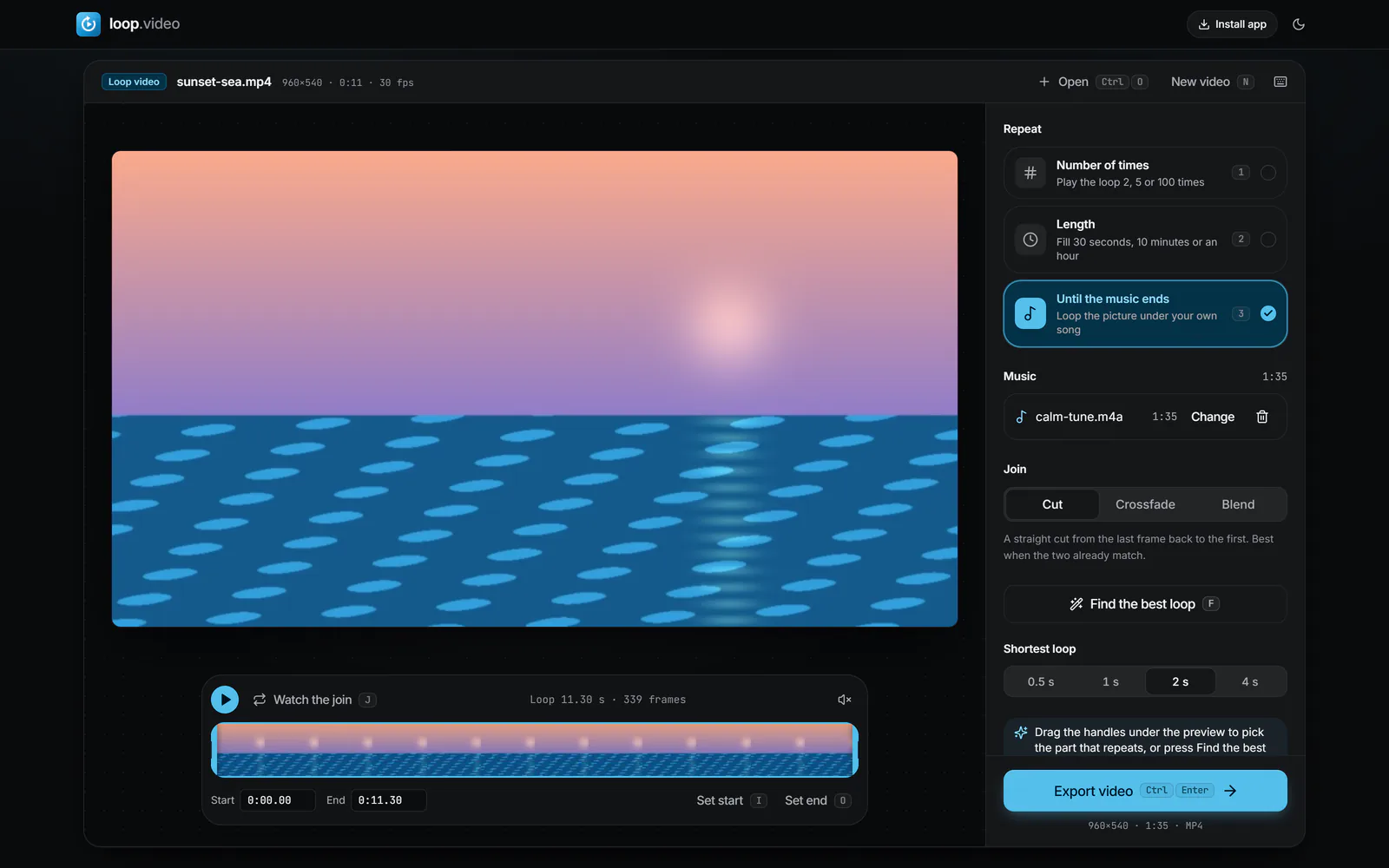 (enlarge image)
Until the music ends with a song added: the export runs exactly as long as the song.
Give the track a Fade in and Fade out so it doesn’t start or stop abruptly, and adjust Volume until it sits at a comfortable level.
Click Export video (Ctrl/Cmd+Enter). When Your video is ready appears, click Download video, or on a phone tap Share or save to Photos.
With Until the music ends selected, the song decides the running time. If you trim the track to 2 minutes 40 seconds, the video is 2 minutes 40 seconds long, however short the loop is. The clip plays as many full passes as fit, and the final pass stops wherever the music does.
That last pass will usually end part-way through, so a Fade out on the music is worth adding: the ending then sounds deliberate even though the picture stops mid-loop. The join settings still apply to every pass in between, so a Crossfade or Blend behaves exactly as it would with any other repeat mode.
Exports are capped at three hours. A single song is far shorter than that, but a long DJ mix or an album joined into one file can go past it.
There is no speed control, so the loop can’t be stretched or squeezed to fit a tempo. What you can do is choose its length. Because the handles are frame-accurate, you can set the loop to a whole number of beats and let each pass land on the music in the same place.
Use Music start to trim any silence or count-in from the front of the track, so the first downbeat lines up with the first frame. Even when a loop isn’t locked to the beat, slow, even movement such as water or traffic rarely clashes with music.
Sometimes the length matters more than the track: a ten-minute slot, or an hour of background picture for a stream or a shop screen. Choose Length instead, pick a duration or type a Custom length, set the sound to Music, and turn on Repeat the music so the song starts again whenever it runs out.
For very long files, the one-hour loop page explains how the export stays quick and what decides the file size. If you only need a clip to reach a set running time, see make a video longer.
The Sound setting has three choices, and only one plays at a time.
If you need speech from the clip with a song quietly underneath, export the loop here with the original sound, then mix in the music using a timeline editor. loop.video does not mix the two.
Owning a copy of a song, whether bought or downloaded, doesn’t usually give you the right to publish it in a video. Video and social platforms check uploads for recorded music, and a match can mean the sound is muted, the video is blocked in some countries, or the earnings go to the rights holder.
For private use, such as a loop for your own TV or a party screen, none of this applies in the same way, but check the rules before playing music in a shop or other public space.
Yes. Choose Until the music ends under Repeat and add the song with Choose music. The clip repeats for exactly as long as the trimmed track lasts.
MP3, M4A, WAV and OGG work, along with other formats your browser can decode. The file is read on your device and never uploaded.
No. Music replaces the clip’s sound. To combine them, export the loop with Original sound and mix the music in a separate editor.
Yes. Set Music start and Music end to the section you want. With Until the music ends, the video then lasts as long as that section.
Choose Length, set the duration you need, and turn on Repeat the music. The track starts again each time it finishes until the video ends.
No. The clip always plays at its normal speed. To line repeats up with the beat, set the loop to a whole number of bars using the frame-accurate handles.
No. GIF and WebP files have no sound. Export as MP4 or WebM to keep the music.