How do I make a video play twice in the same file?
Open it, choose Number of times and tap ×2, then press Export video. The new file contains the clip twice, one pass straight after the other.
Free · runs in your browser
Choose how many times the clip plays, check the total running time, and export one file that holds every pass back to back.
To repeat a video, open it here, choose Number of times under Repeat, pick a count such as ×2, ×5 or ×10 (or type any number up to 999) and press Export video. You get a single file in which the clip plays that many times in a row, ready to download or share.
The finished length is easy to predict: number of passes multiplied by the length of the loop. A 6-second clip played five times runs for 30 seconds; a 12-second clip played ten times runs for two minutes. If you trim the loop with the handles first, the sum uses the trimmed length, not the full clip.
Everything happens in your browser, so the video never leaves your device, and there is no account or watermark. When a few conditions line up, the repeats are made from the original frames with no re-encoding at all, so the picture is exactly as it was recorded.
Drag the file onto Drop a video to loop, or press Select video (on a phone, Choose video). MP4, MOV, WebM, MKV and GIF all open, as long as your browser can decode them.
Drag the Loop start and Loop end handles on the strip under the preview, or leave them at the ends to repeat the whole clip. Press Play loop (Space) to hear and see one pass.
Under Repeat, pick Number of times and tap ×2, ×3, ×5 or ×10, or enter any whole number from 1 to 999. The estimate line under Export settings shows the total length.
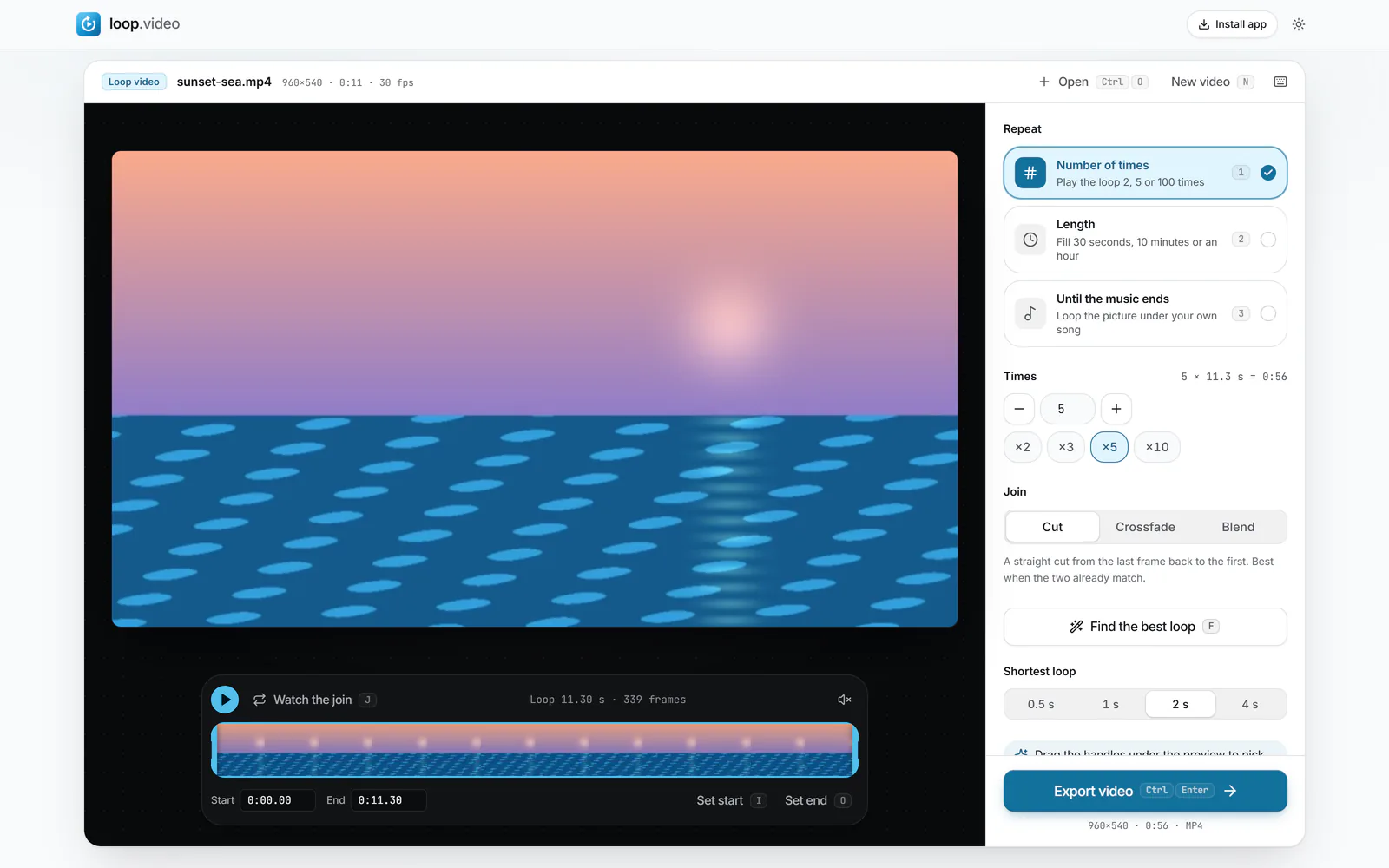 (enlarge image)
Number of times with ×5 chosen: five passes of an 11.3-second loop make 56 seconds.
Leave the join on Cut for a straight repeat. If the jump from the last frame back to the first looks rough, try Blend or Crossfade, and press Watch the join (J) to check it.
Press Export video (Ctrl/Cmd+Enter). When Your video is ready appears, press Download video, or Share on a phone to send it on or save it to Photos.
With Number of times, the running time is the count multiplied by one pass: five plays of a 4-second loop make 20 seconds. You don’t need to do the sum yourself, because the estimate line under Export settings shows the length together with the expected file size and pixel size before anything is exported.
If you need a particular running time rather than a particular count, switch to Length instead and the tool works out the passes for you; see make a video longer for short targets and loop a video for an hour for long ones.
Saving a new video file normally means compressing every frame again, and each round of compression loses a little detail. loop.video can skip that step. When the join is Cut, Shape is Original, Size is original, Quality is Standard and the loop starts on a key frame, the original compressed frames are copied straight into the new file for every pass. Nothing is re-encoded, so the picture matches the source exactly and the export is very quick.
Video files save space by storing a complete picture only now and then. That complete picture is a key frame. The frames after it store just what changed since the previous one, so they cannot be shown on their own. A copied pass therefore has to begin on a key frame, or its first frames would have nothing to build on.
The very first frame of a file is a key frame, so leaving Loop start at the beginning of the clip is the surest way to meet that condition. Further key frames usually turn up every second or two in phone and camera footage, but the spacing varies from file to file.
If any condition is not met, for instance because you chose Crossfade or 720p, the loop is encoded once and those encoded frames are reused for every pass. The quality is still consistent from the first pass to the last, and the sound is always rebuilt for the full length so it stays in step with the picture.
For a short section inside a longer video, such as one move in a dance routine, start with loop part of a video, which covers picking the exact frames to repeat.
Under Sound, Original keeps the clip’s audio on every pass, Music swaps it for a track you choose, and Off exports a silent video. Smooth the sound at the join is on by default and blends the last moment of sound into the first, which stops a click at each repeat.
Format can be MP4 (H.264 with AAC sound) or WebM where your browser can encode it. GIF and animated WebP work differently: they hold a single pass of at most 30 seconds and the file itself carries the count, so a GIF set to Number of times ×5 plays five times and then stops. Neither format carries sound, and Safari cannot open animated WebP. For short silent clips see make a looping GIF.
Open it, choose Number of times and tap ×2, then press Export video. The new file contains the clip twice, one pass straight after the other.
You can type any count from 1 to 999. The export is capped at three hours, so with a long clip the limit you reach first may be the time cap rather than the count.
Not when the original frames can be copied: a Cut join, Shape Original, Size original, Quality Standard and a loop that starts on a key frame. Otherwise the loop is encoded once, which is a single round of compression, the same as any editor saving a new file.
A Crossfade join overlaps the end of each pass with the start of the next, so each pass loses the crossfade length. Switch to Cut or Blend if you need the full count × length.
Yes. Drag the Loop start and Loop end handles, or type times into the Start and End boxes, and only that section repeats.
Yes, with Sound set to Original. The audio is rebuilt for the whole length so it lines up with every pass, and the join is smoothed by default to avoid a click.
No. loop.video is free, adds no watermark and needs no account. The file is processed in your browser and never uploaded.
Use Find the best loop to pick a start and end that match closely, then a Blend or Crossfade join if needed. Press Watch the join to see the result before you export.