What is a cinemagraph?
A still image in which one small part keeps moving in a repeating loop, such as steam rising from a mug in an otherwise frozen photo. It sits between a photograph and a video.
Free · runs in your browser
Turn a short, steady clip into a living photo: one part keeps moving while everything around it holds perfectly still.
To make a cinemagraph, open a clip filmed on a tripod, paint over the area that should keep moving, and pick one frame for everything else to freeze on. In loop.video that is the Freeze everything except a painted area switch under More options, with a brush to mark the moving part and a button to choose the still frame.
The effect works because the eye expects a photo to be still. When steam curls from one cup in an otherwise frozen café, or a single strand of hair lifts in the wind, the contrast does the work. Getting there takes three decisions: which footage to use, where to paint, and how the moving part loops.
Everything happens in your browser. The clip is not uploaded, the result carries no watermark, and you can save it as an MP4 for social media or as a looping GIF for anywhere else.
Press Select video (Choose video on a phone) or drag the file in. Footage shot on a tripod works best, because anything that drifts will tear against the frozen parts.
Drag the Loop start and Loop end handles, or press Find the best loop. This page opens with the join set to Crossfade at 0.4 s, which hides the restart of water, steam and flames well. Press Play loop (Space) to check it.
More options is already open. Turn on Freeze everything except a painted area (or press G). Until you paint, the whole picture still moves.
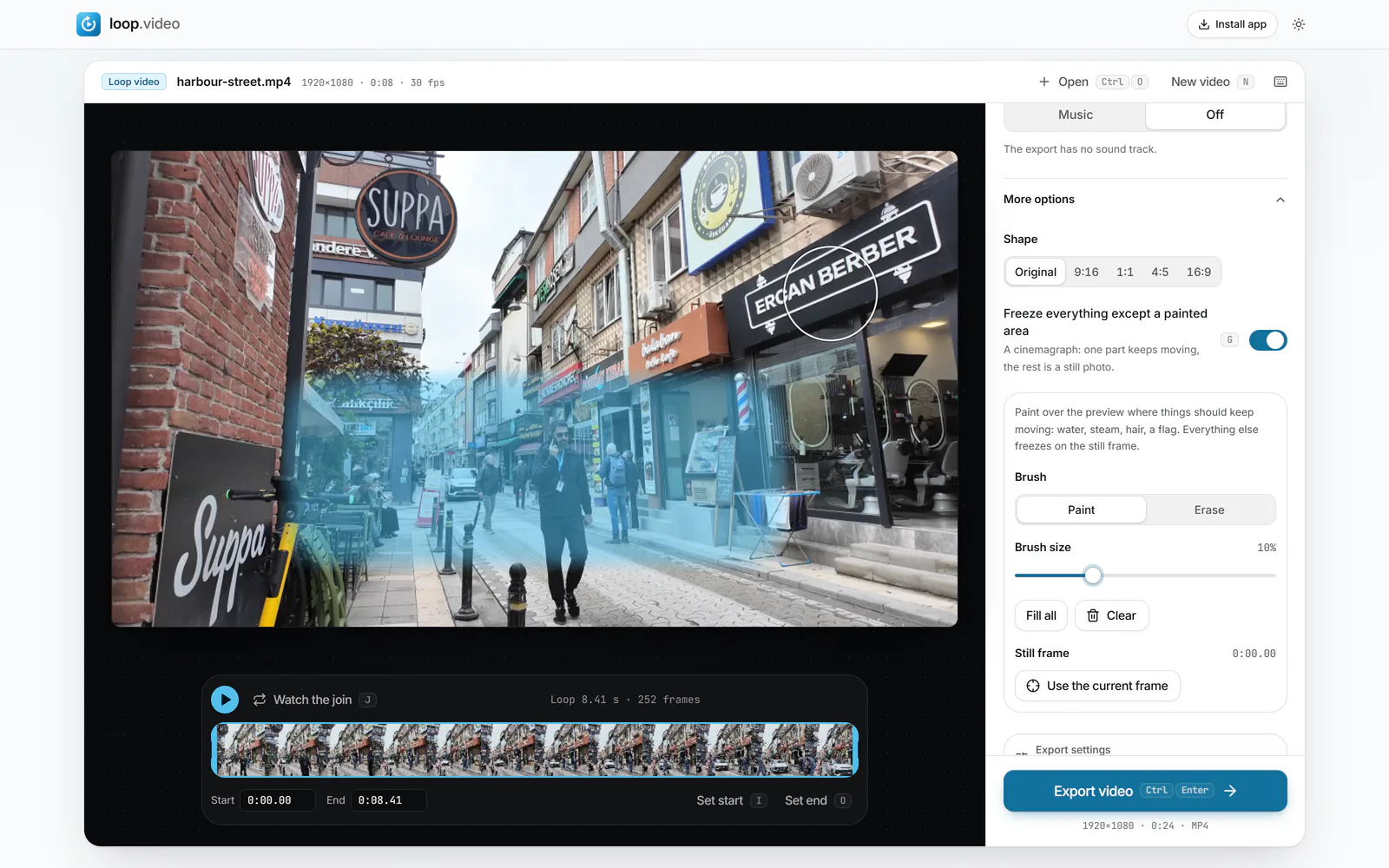
With Brush on Paint, brush over the preview where motion should stay. Set Brush size for the job, switch to Erase to tidy edges, use Fill all to paint the whole frame at once, or Clear to start again.
 (enlarge image)
The painted area (tinted blue) keeps moving; everything else freezes on the Still frame.
Move the playhead to the moment you want the frozen parts to show, then press Use the current frame under Still frame. Choose a frame where nothing in the frozen area is blurred or mid-blink.
Open Export settings and choose MP4, GIF or WebP, then press Export video (or Export GIF, Export WebP) and Download video when it is ready.
A cinemagraph is two layers. Underneath sits one still frame from your clip. Over it, inside the area you paint, the clip keeps playing and repeating. Everywhere you leave unpainted shows only the still frame, so a person, a building or a street stays perfectly fixed.
Because the frozen area never changes, the restart of the loop can only be seen inside the painted part. That makes the join much easier to hide than in a full-frame loop: a short crossfade over a patch of rippling water is almost impossible to spot, even when the rest of the scene had a car driving past.
For the same reason, the still frame and the moving area must come from a camera that stayed put. If the phone moved even slightly, the moving patch slides against its frozen surroundings and a seam appears along the edge of your painting.
The moving area still needs a good loop. Find the best loop compares whole frames, not only the painted part, so in a scene with lots of unrelated movement its rating can undersell how well your painted part loops. Run it as a starting point, then judge with Watch the join (J), which plays the moment the end meets the start.
Natural motion such as steam, flames and water rarely returns to exactly the same state, which is why this page starts with Crossfade. Give slow, drifting subjects a longer Crossfade length; keep it short for quick, regular motion so you do not see two layers at once. Blend is the alternative when the moving part almost matches already. The seamless loop video page compares the three joins in detail.
Short loops suit cinemagraphs. Two to six seconds of repeating motion is usually plenty, and it keeps GIF and WebP files small.
For an Instagram post or Reel, export MP4 and set Shape to 4:5 or 9:16 under More options; the Instagram loop video page covers the sizes. For a website header or an email, a GIF or WebP is usually easier to drop in.
A still image in which one small part keeps moving in a repeating loop, such as steam rising from a mug in an otherwise frozen photo. It sits between a photograph and a video.
“Living photo” is a loose name for any photo with some motion in it. A cinemagraph is the specific kind where most of the frame is frozen and only a chosen area moves, on a loop that does not visibly restart.
Yes, as long as the phone was held still, ideally on a stand or resting on something solid. loop.video runs in a modern phone browser, though a computer is more comfortable for painting fine edges.
Usually the camera moved during the clip, so the moving area no longer lines up with the still frame. It can also mean motion crosses your painted border; paint a little wider or erase where the motion should stop.
Yes. Press Fill all so the whole frame moves, then switch Brush to Erase and brush over the subject you want frozen.
An MP4 export can keep the clip’s sound or use music you choose. GIF and WebP files have no sound.
Two to six seconds is typical. The loop just needs to be long enough that the motion looks natural; as a GIF or WebP it can be at most 30 seconds.
No. Painting, previewing and exporting all happen in your browser, and the file stays on your device.