How do I make a GIF loop forever?
Set Repeat to Length (or Until the music ends) before you press Export GIF. The file is then marked to loop forever, which is how this page starts.
Free · runs in your browser
Choose the moment, set the width and frame rate, and save a GIF or animated WebP that loops on its own.
To make a looping GIF from a video, open the clip, drag the handles around the moment you want, and set Format to GIF under Export settings. The GIF holds one pass of your loop and repeats by itself wherever it is shown, forever or a number of times you choose.
loop.video converts MP4, MOV, WebM and MKV files where your browser can read them, and the same steps give you an animated WebP, the newer format that is usually smaller and sharper than a GIF. Nothing is uploaded, nothing is watermarked and you do not need an account.
The hard part of a good GIF is not the conversion; it is keeping the file small enough to share and making the restart look smooth. Both are covered below.
Press Select video (Choose video on a phone) or drop an MP4, MOV, WebM or MKV file onto the page.
Drag Loop start and Loop end under the preview, or move the playhead and press Set start (I) and Set end (O). A GIF can hold up to 30 seconds. Press Find the best loop if you want the restart to look smooth.
This page starts with Repeat on Length, which makes a GIF that loops forever. Choose Number of times instead if the GIF should play a set number of times and then stop.
Open Export settings. Format is already GIF; pick WebP for a smaller file. Then choose Width (320, 480, 640 or 800), Frame rate (10, 15, 20 or 25 fps) and Quality. The estimate line underneath shows the expected size.
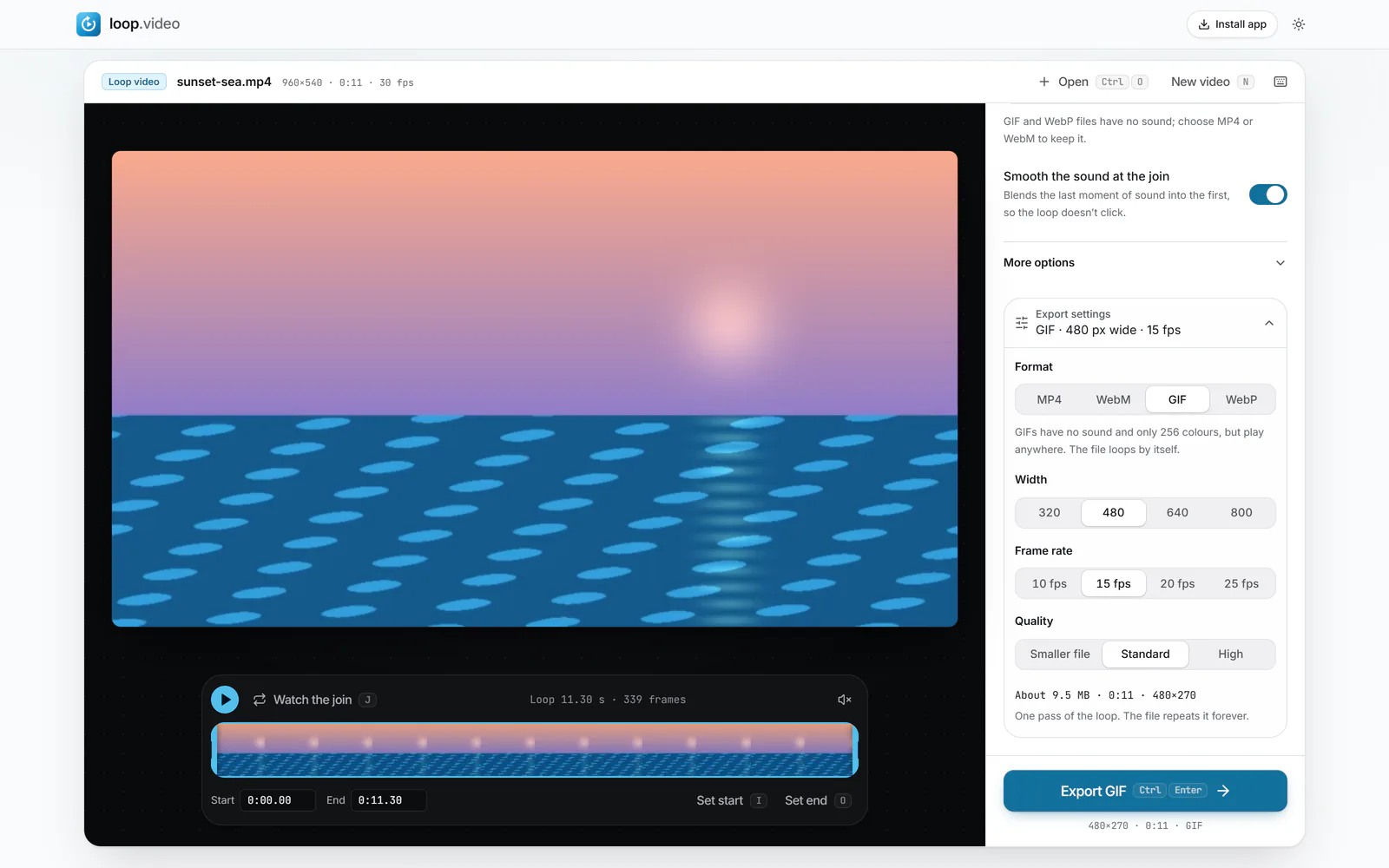 (enlarge image)
Format → GIF, with Width, Frame rate and Quality below.
Press Export GIF (or Export WebP), then Download video to save the file, or Share on a phone.
Both formats play automatically, loop on their own and carry no sound. The differences are in colour, size and where they can be made.
If the destination accepts video, an MP4 is smaller and better looking than either, and can have sound. Choose MP4 under Format for that.
A GIF or WebP file holds a single pass of your loop, plus an instruction telling the viewer how many times to play it. The Repeat choice sets that instruction:
Some apps and websites loop every GIF regardless of what the file says, so a three-play GIF may still repeat endlessly in a chat. That is the app’s choice, not the file’s.
GIF sizes surprise people. A few seconds of full HD video can easily turn into a file of tens of megabytes. These settings matter most, roughly in order:
Check the estimate line under Export settings as you change these; it shows the size, length and pixel dimensions before you export.
Because a GIF repeats straight away, a jump at the restart is seen over and over. Press Find the best loop to let the tool pick the start and end frames that meet most cleanly, then Watch the join (J) to check the restart. If there is still a flick, set Join to Crossfade so the end dissolves into the start.
A lower frame rate makes any jump look bigger, because each frame stays on screen longer. If the restart is borderline at 10 fps, try 15. For the theory behind clean restarts, see the seamless loop video guide; for a GIF where only part of the picture moves, try the cinemagraph maker.
Going the other way, with a GIF you already have that needs to become a longer video or get music? See GIF to MP4 loop.
Set Repeat to Length (or Until the music ends) before you press Export GIF. The file is then marked to loop forever, which is how this page starts.
Choose Number of times under Repeat and set the count. The GIF plays that many times and stops, in apps that respect the count.
No. Neither GIF nor animated WebP can carry audio. If you need sound, export an MP4, which most social apps loop automatically.
GIF compresses video poorly. Lower the Width to 480 or 320, use 10 or 15 fps, shorten the loop, choose Smaller file, or export WebP instead.
480 pixels wide at 15 fps is a good balance for chats and social posts. Go to 320 for small reactions, and raise the frame rate only for fast motion.
Your browser cannot encode animated WebP. It is available in Chrome, Edge and Firefox but not in Safari.
Up to 30 seconds for one pass. In practice, most good GIFs are between two and ten seconds, which also keeps the file manageable.
No. The conversion runs in your browser and the file never leaves your device.